Bulk import
Add hundreds or thousands of assets, devices or zones at once from a spreadsheet, instead of adding them one at a time.
Onboarding a site usually starts with a list: a spreadsheet of tag IDs from your supplier, or a list of depot addresses from your operations team. Bulk import takes that file as it is, shows you what it will create, and then creates it. Nothing is added until you have seen a preview, and everything an import creates is labelled so you can find it again or remove it later.
What you can import
| Type | Started from | Each row needs |
|---|---|---|
| Assets | The Assets page | A tag ID |
| Devices | The Devices page | A device ID |
| Coordinate zones | The Zones page | A name and an address |
Import is launched from the list it adds to, so the type is already decided: the button on the Zones page imports zones, the one on the Assets page imports assets.
How it works
- Upload a CSV. Your column headings are matched to the fields automatically, so a file with "Tag ID" and "Name" usually needs no adjustment.
- Check the columns. Change anything matched wrongly, and optionally set values that apply to every row, such as a type or a keyword.
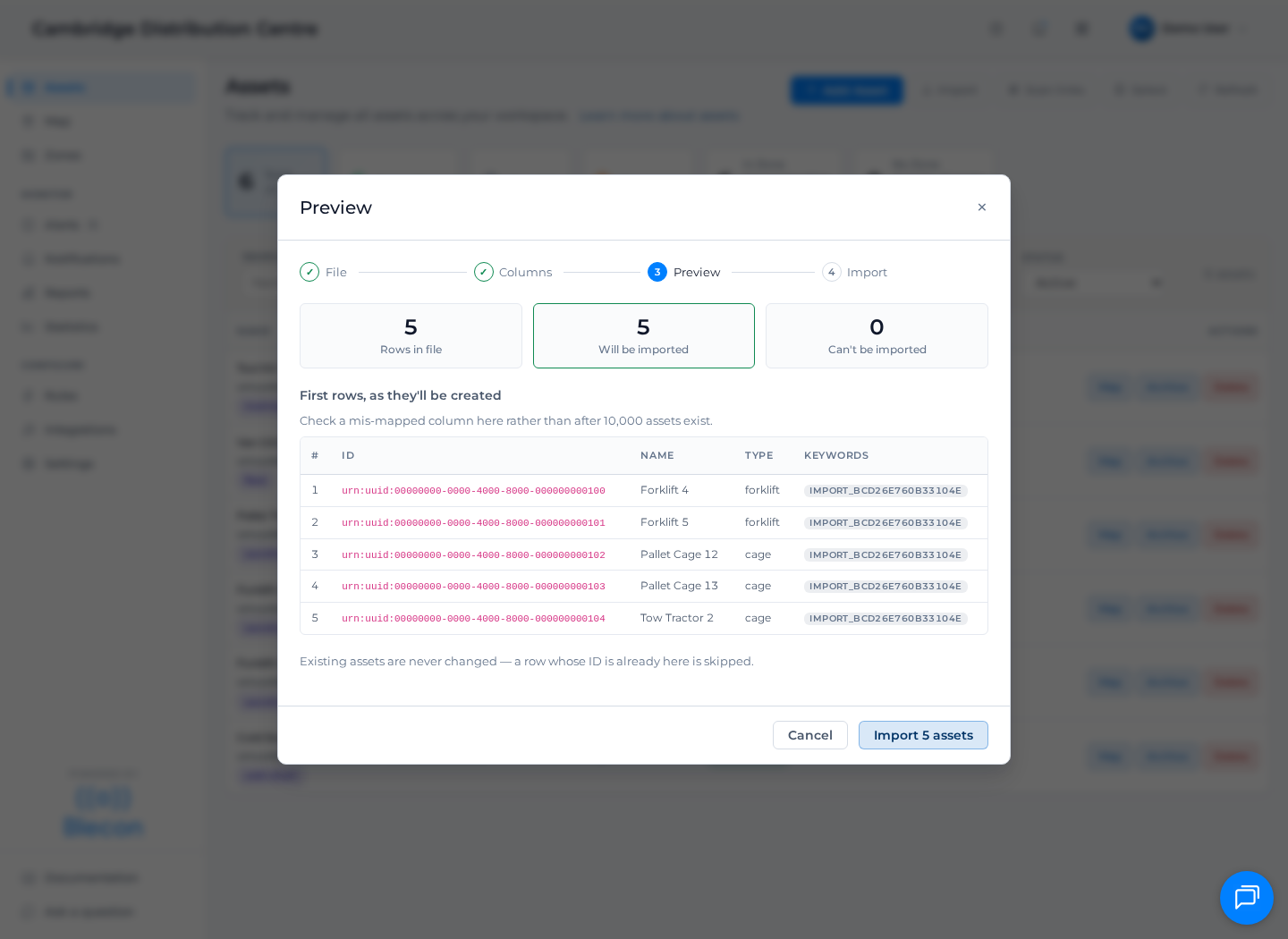
- Preview. You see how many rows will be imported, how many cannot be, and the first rows exactly as they will be created. Rows that cannot be imported are listed with the reason.
- Import. The import runs on our servers, so you can close the window. You get an email when it finishes.
Large imports take a few minutes. The progress is shown while you wait, and the result is kept so you can come back to it.
Importing zones from addresses
Zone rows use a name and an address rather than map coordinates. Each address is looked up and a square zone is drawn around the result, at a size you choose for the import.
Address lookup is a best guess, and a vague address can match the wrong place rather than failing outright. The preview shows the address that was found for every row and flags loose matches, so check those before importing.
Placing assets on another asset
An asset can be placed on another one as it is imported: a tool in its van, a case on its pallet. Add a parent column naming the tag ID of the asset it goes on, and an optional relationship column such as stored in.
asset_id,asset_name,asset_type,parent,relationship
urn:uuid:1111...,Van 4127,van,,
urn:uuid:2222...,Torque wrench,tool,urn:uuid:1111...,stored in
- The parent can be a row in the same file, as above, so vehicles and their contents import together. It can also be an asset the workspace already has.
- A parent that is in neither is a skipped row, with the reason in the preview. There is nothing to name or type an asset that has no row.
- A later import moves an asset. Import only adds assets, but naming a different parent for an asset you already have moves it, and the move is recorded in its association history.
- Column headings are matched for you. A fleet's own sheet can say "Van" or "Placed on".
The other way to place assets is a workflow with a step saved to Place on (parent), where a phone does the same job without a spreadsheet. Asset associations explains what a placement does.
Finding what an import created
Every asset, device or zone an import creates is given the import's ID as a keyword. From the import list, click that keyword to see everything the import added.
That is also how you undo one. Filter the list to the import's keyword, select all, then archive them (for assets and devices) or delete them (for zones).
Rows that cannot be imported
An import never stops at the first bad row. Rows that cannot be imported are skipped and the rest go ahead. You can download the failures as a CSV containing your original rows plus a column explaining each one, so you can correct them and upload again.
Common reasons a row is skipped:
- The ID is not a supported tag type.
- The same ID appears twice in the file.
- The asset is already in this workspace. Import only adds; it never overwrites something that already exists.
- The
parentnames an asset that is in neither the file nor the workspace, or two rows place each other in a loop. - A zone's address could not be found.