Anchors
GPS doesn't work indoors. Anchors (formerly called reference beacons) solve this by giving the positioning system fixed, known anchor points throughout your building, so Blecon can accurately place tracked tags even deep inside a warehouse, office, or factory floor.
An anchor is a small tag installed at a known location. Because its position is pre-configured, the system uses it as a spatial anchor rather than trying to locate it. When a hotspot sees the beacon, the cloud knows which area that hotspot covers and places the other tags it sees in the right network zone.
Anchors also make zone assignment flexible: because the zone comes from the beacon a hotspot sees — not from the hotspot's own settings — you can reorganise zones just by moving beacons, with no hotspot reconfiguration.
How anchors work
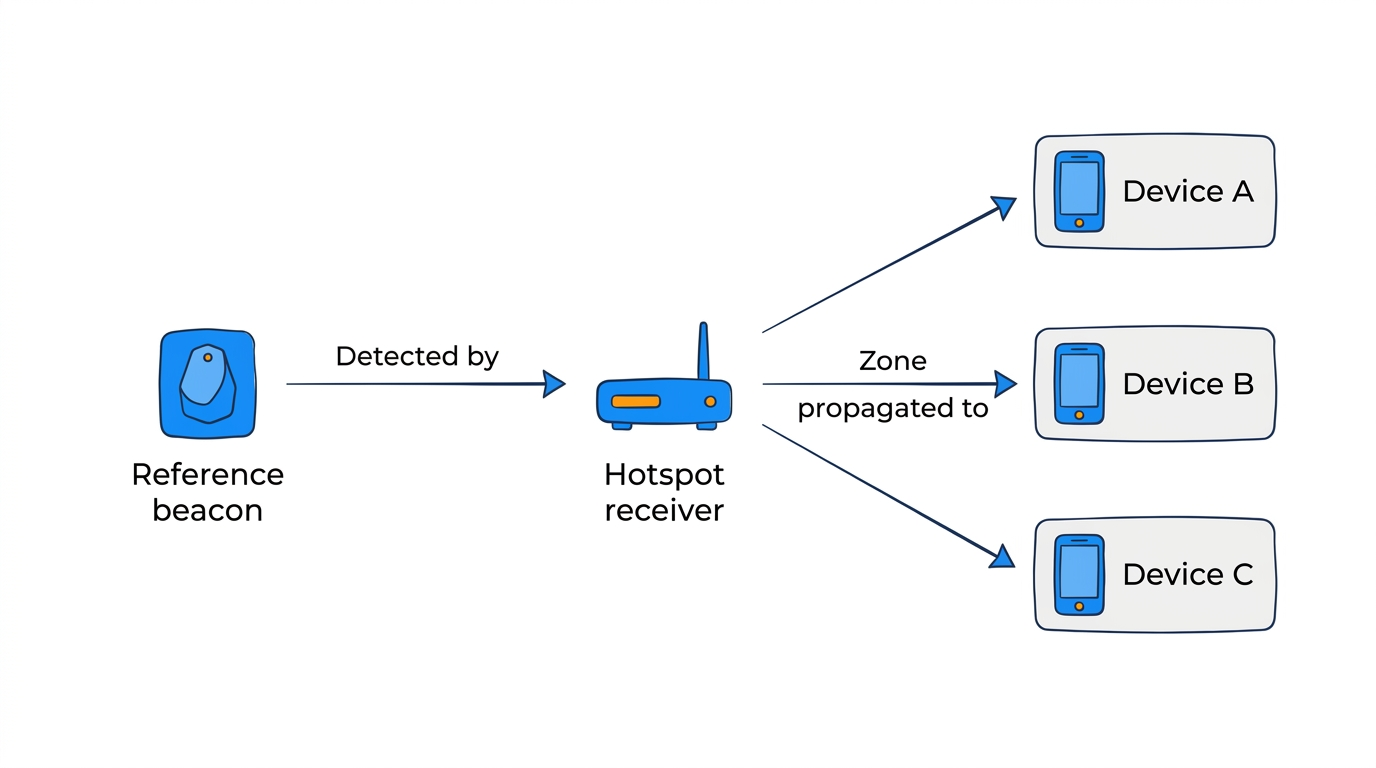
An anchor is a regular tag configured with:
- A fixed position (GPS coordinates or local x/y/z).
- A zone assignment (which network zone the tag belongs to).
A hotspot (a fixed hub or a mobile device running the agent) detects the anchor and reports the sighting to the cloud. Because the beacon's position is already known, the cloud uses it as a fixed anchor rather than trying to locate it. Any other tag that the same hotspot sees is then placed in the anchor's network zone.
This means you can assign network zones without configuring each hotspot individually. Place an anchor in a room, and any tag seen alongside it lands in that room's network zone.
Seeing your anchors
Select Anchors under Network in the sidebar to see every anchor in your workspace in one place: its name, the network zone it assigns, whether it has a fixed position, the floor, and when it last reported. Anchors that are also assets in the workspace link through to their asset page.
Hubs appear in the same list: a hub that has been placed, or that assigns a network zone, acts as an anchor automatically — its position and zone are already known, so there is nothing to configure. Hub rows link to the hub's own page.
Setting up an anchor
Any asset can become an anchor. + Add Anchor on the Anchors page explains these steps and takes you to the Assets page.
- Add the tag to your workspace as an asset, if it is not one already.
- Open the tag's asset page.
- Choose Convert to anchor.
- Select the network zone the tag belongs to.
- Optionally set the tag's floor and GPS coordinates (for positioning accuracy).
The zone assignment takes effect immediately. From then on, any tag seen by a hotspot that also sees this beacon is placed in the beacon's zone by the cloud.
When to use anchors
- Room-level network zone assignment: Place a beacon in each room; tags a hotspot sees alongside that beacon are placed in the room's zone.
- Flexible deployments: Move a beacon to change which zone its nearby tags land in, without reconfiguring any hotspot.
- Sites with shared hotspot infrastructure: The same hotspots can serve multiple network zones, with beacons defining the boundaries.
Related pages
- Zone detection
- How positioning works
- Zones (Blecon Track)