Alert Workflow
Never lose track of an open issue. Alerts give you a live, always-current view of every condition in your operation that needs attention. They stay visible until the problem is resolved, so nothing slips through the cracks.
How alerts work
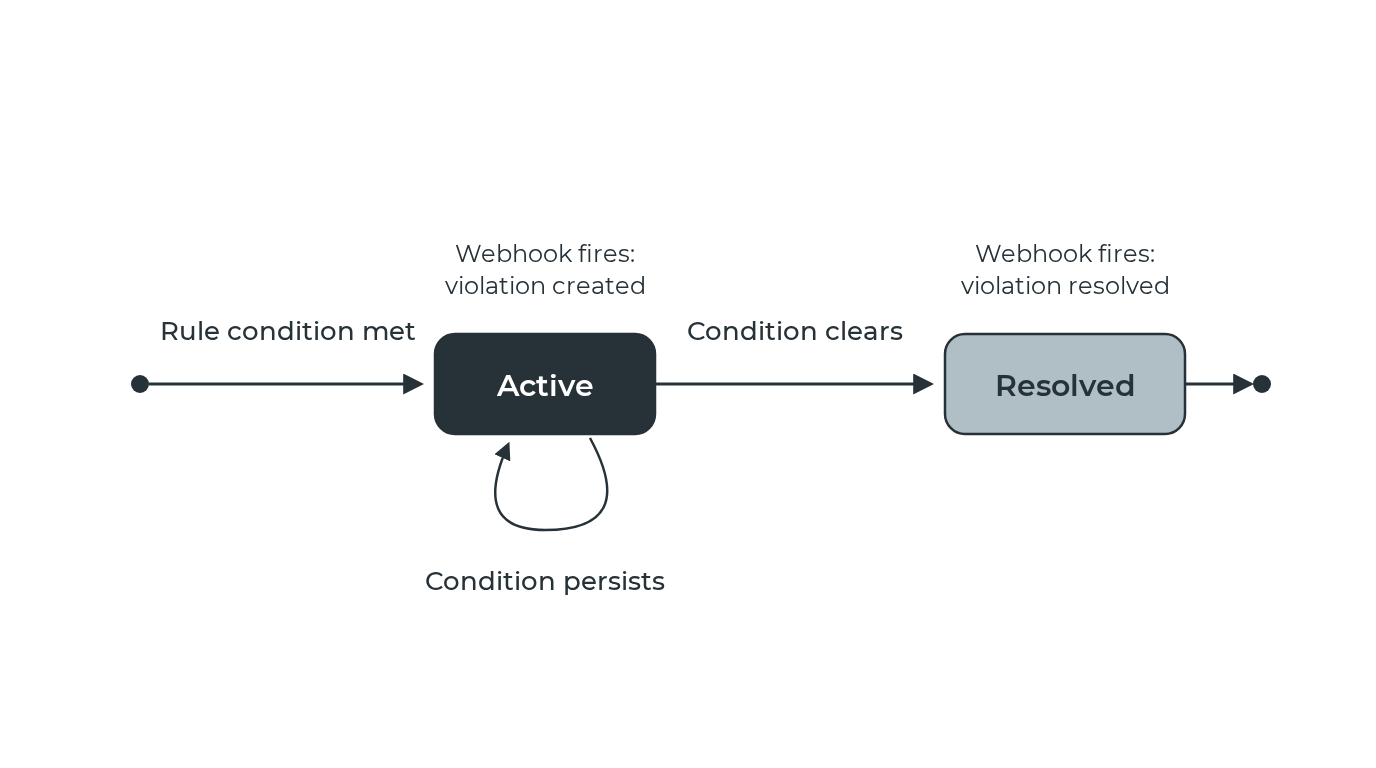
When an alert rule triggers, it creates an alert. Unlike one-time notifications, alerts persist until the underlying condition resolves. This gives you a live view of everything that's out of compliance across your workspace.
For example: - A geofence exit alert stays active until the tag returns to the zone. - A dwell time alert stays active until the tag leaves the location. - An inactivity alert stays active until the tag reports a new position.
The alerts page
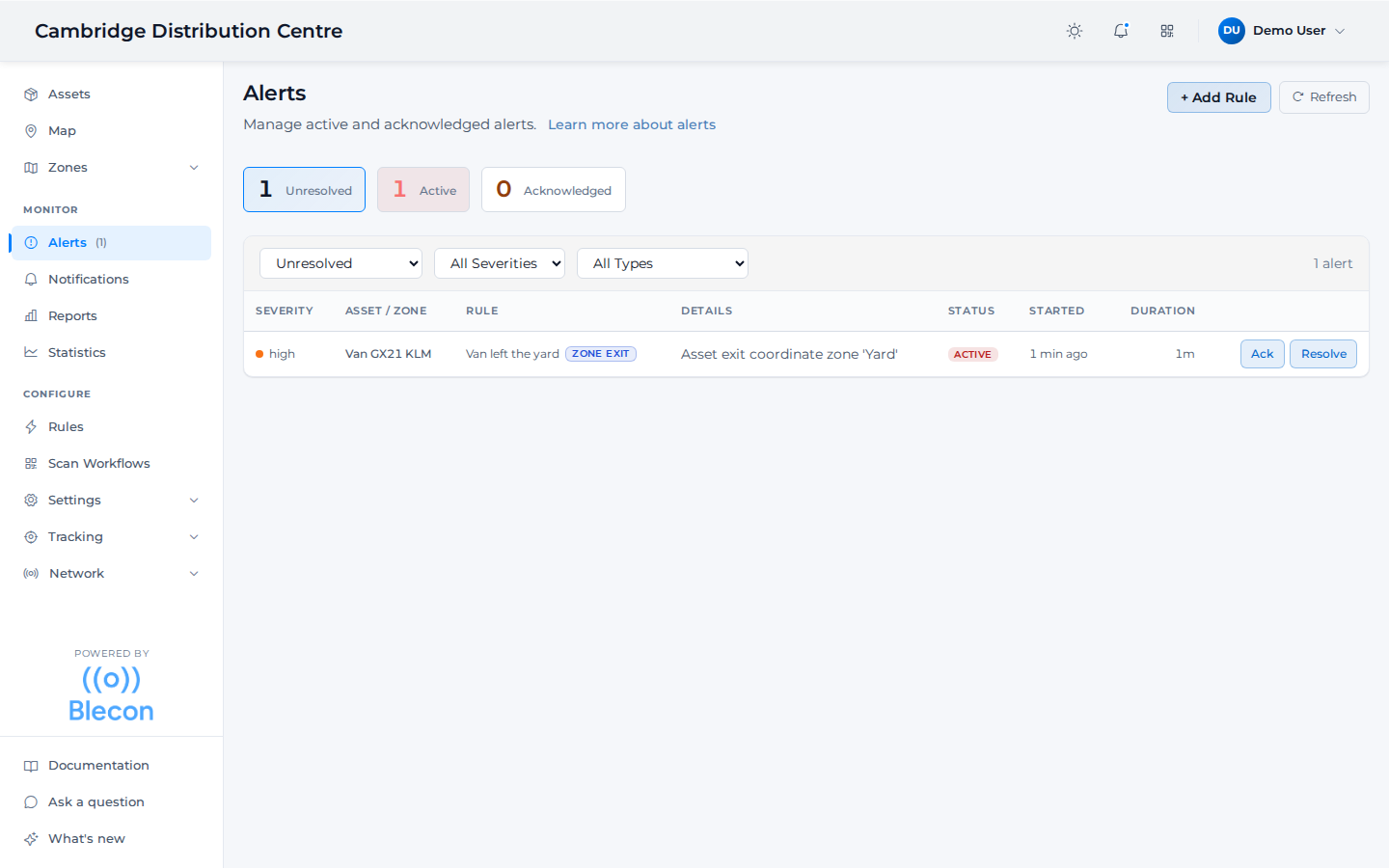
Every alert shows which asset and rule raised it, how severe it is, when it started, and how long it's been open. The Ack and Resolve buttons on each row drive the lifecycle described below; the counts along the top let you see at a glance whether anything is unhandled.
Alerts vs notifications
A rule produces an alert only when it has an alert severity — low, medium, high, or critical. A rule left at the default notification severity sends a notification instead: a fire-and-forget event with no lifecycle and nothing to acknowledge or resolve. This page covers alerts — the kind that stay open until someone acts. See Notifications for the informational kind.
Alert lifecycle
Every alert follows a lifecycle:
pending → active → acknowledged → resolved
- Pending: The condition was detected but is within a grace period. The alert appears on the Alerts page with a yellow badge. If the condition clears before the grace period elapses, the pending alert is removed without sending a notification. Not all rule types use this status — only rules with a grace period (e.g., separation).
- Active: The condition is confirmed. The alert appears on the Alerts page and needs attention.
- Acknowledged: Someone has seen the alert and optionally assigned it to someone. The underlying condition is still present, but the team knows about it.
- Resolved: The condition has cleared. Alerts can resolve automatically (the tag returned to the zone, the dwell ended) or be resolved manually by a user.
Acknowledging alerts
Click Ack on any active alert to mark it as acknowledged. This signals to your team that the issue is known and being handled. Acknowledged alerts stay visible on the Alerts page; they don't disappear until resolved.
Resolving alerts
Alerts resolve in three ways:
- Automatically: The system resolves the alert when the triggering condition clears (e.g., a tag re-enters a geofence). Most alerts resolve this way.
- Manually: Click Resolve to close an alert that you've handled, even if the underlying condition hasn't changed. For example, you might manually resolve an inactivity alert after confirming the tag is switched off for maintenance.
- As a false alarm: Click False alarm to close an alert that should not have fired. This does more than tidy the list: it teaches the system. A rule that collects false-alarm resolutions gets a drafted fix from the AI rule builder.
If a resolved alert's condition recurs, the system creates a fresh alert with no acknowledgement history; it's treated as a new incident.
Fix the cause with a workflow
Link a workflow to a rule, so that the person who receives the alert can fix the cause from a phone.
For example, a rule counts the assets in Bay 4 that do not have the keyword tagged, and alerts when there are more than five. The linked workflow is an App workflow for existing assets only, which adds the keyword tagged to each asset it scans. A frontline worker opens the workflow and scans each untagged asset. On its next check, the rule counts zero untagged assets and resolves the alert automatically.
- Open the rule, or create one.
- In Workflow (optional), select the workflow.
- Save the rule.
Each open alert from the rule then carries a Start workflow link: on the Alerts page, in the email, in the Slack message and in the webhook payload. A resolved alert has no link.
The workflow does not resolve the alert. The rule resolves it when the condition clears, as for any other alert. Scanning one asset out of twelve does not resolve an alert about twelve.
Only a workflow with no Max registrations limit can be linked. A workflow link opens without a sign-in, and alerts can repeat, so a limited workflow would soon be used up. If you revoke the workflow or it expires, alerts are still delivered, but without the link.
AI verdicts on alerts
Any alert can be investigated for you. Click the alert row to open the analysis view, and Blecon Track AI reads the evidence a person would gather (the asset's movement over the last day, the fixes around the trigger, this asset's history against the rule, and how many other assets fired at the same moment) and gives a verdict:
- Looks like a real event: the evidence supports the alert.
- Possible false alarm: the evidence points to a positioning artifact, such as a momentary boundary flap or a single bad fix.
The analysis takes a few seconds. The view shows "Analysing this alert" while it runs, then the verdict appears with one or two sentences naming the specific evidence: "The asset moved 11 km between two fixes 30 seconds apart, which is not physically possible." Once an alert has been analysed the verdict stays on it, and shows as a line under the alert in the list.
Alerts are analysed when you ask, not automatically as they arrive. This keeps the cost of the feature tied to the alerts you actually look at. A verdict stays in the dashboard, where you asked for it: no email, Slack message or webhook carries one, at any point in the alert's life. To read a verdict, open the alert.
A verdict never changes the alert. It does not resolve, hide or downgrade anything: it is an opinion next to the evidence, and the lifecycle above stays entirely yours.
The analysis view also shows the same evidence the verdict was judged from: the hourly movement table, the fixes around the trigger, zone transitions, and the alert's history. You can open it on any alert, analysed or not. If you disagree with a verdict, the disagreement is with visible evidence, not a black box. Resolving with Resolve or False alarm also tells the system whether the verdict was right.
AI verdicts are available on Pro and Enterprise plans.
The Alerts page
The Alerts page is your triage workspace. It shows individual alerts with:
- Severity: Visual indicator of the priority level.
- Asset: The affected tag, linked to its history.
- Rule: Which rule triggered the alert, linked to the rule detail.
- Status: Active, acknowledged, or resolved.
- Duration: How long the alert has been open.
- Actions: Ack and Resolve buttons.
Use the filters to narrow by status, severity, or rule type. The filter bar above the list shows only the alerts of the matching assets, and they stay set from the Assets page and the map. With an asset filter set, zone alerts, which belong to no asset, are not listed. Click the stat cards at the top to quickly switch between active and acknowledged views.
Delivery
Alerts are delivered to your team through event delivery channels (email, Slack, Zapier, webhook, in-app) at three points in the lifecycle:
- When an alert is created (event type:
new) - When an alert is resolved automatically (event type:
resolved) - When someone acknowledges or resolves an alert manually (event type:
status_changed)
Integrating with external systems
The alert lifecycle is fully accessible via the API, making it straightforward to integrate with dispatch systems, fleet management tools, or custom dashboards.
Example: driver routing integration
A common pattern is connecting alerts to a driver dispatch or task management system:
- Listen for new alerts via a webhook channel. When a
return_to_baseorscheduled_returnalert fires, your system receives the tag ID and rule details. - Acknowledge the alert via the API to signal that your routing system has picked it up, optionally assigning it to a driver or dispatcher:
PATCH /api/workspaces/{id}/alerts/{alert_id}/acknowledge {"assignee": "driver-42"} - Add notes as the situation develops, for audit trails or handoff between shifts:
POST /api/workspaces/{id}/alerts/{alert_id}/notes {"text": "Driver rerouted, ETA 15 min"} - Resolve manually if the external system handles the issue before the tag triggers auto-resolution:
PATCH /api/workspaces/{id}/alerts/{alert_id}/resolve
{"note": "Confirmed returned via dispatch system"}
The API also supports filtering alerts by assignee, status, severity, and rule_type, useful for building dashboards that show only the alerts assigned to a particular team or person.
Key API endpoints
| Endpoint | Method | Description |
|---|---|---|
/alerts |
GET | List alerts with filters (status, severity, rule_type, assignee, and the asset filters of /assets) |
/alerts/stats |
GET | Counts by status and severity |
/alerts/{id}/acknowledge |
PATCH | Acknowledge an alert, optionally assign |
/alerts/{id}/resolve |
PATCH | Manually resolve an alert |
/alerts/{id}/notes |
POST | Add a timestamped note |
All endpoints are scoped to /api/workspaces/{workspace_id}/. See the interactive API reference for full request and response schemas.