Alerts
Never lose track of an open issue. Alerts give you a live, always-current view of every condition in your operation that needs attention — and they stay visible until the problem is resolved, so nothing slips through the cracks.
How alerts work
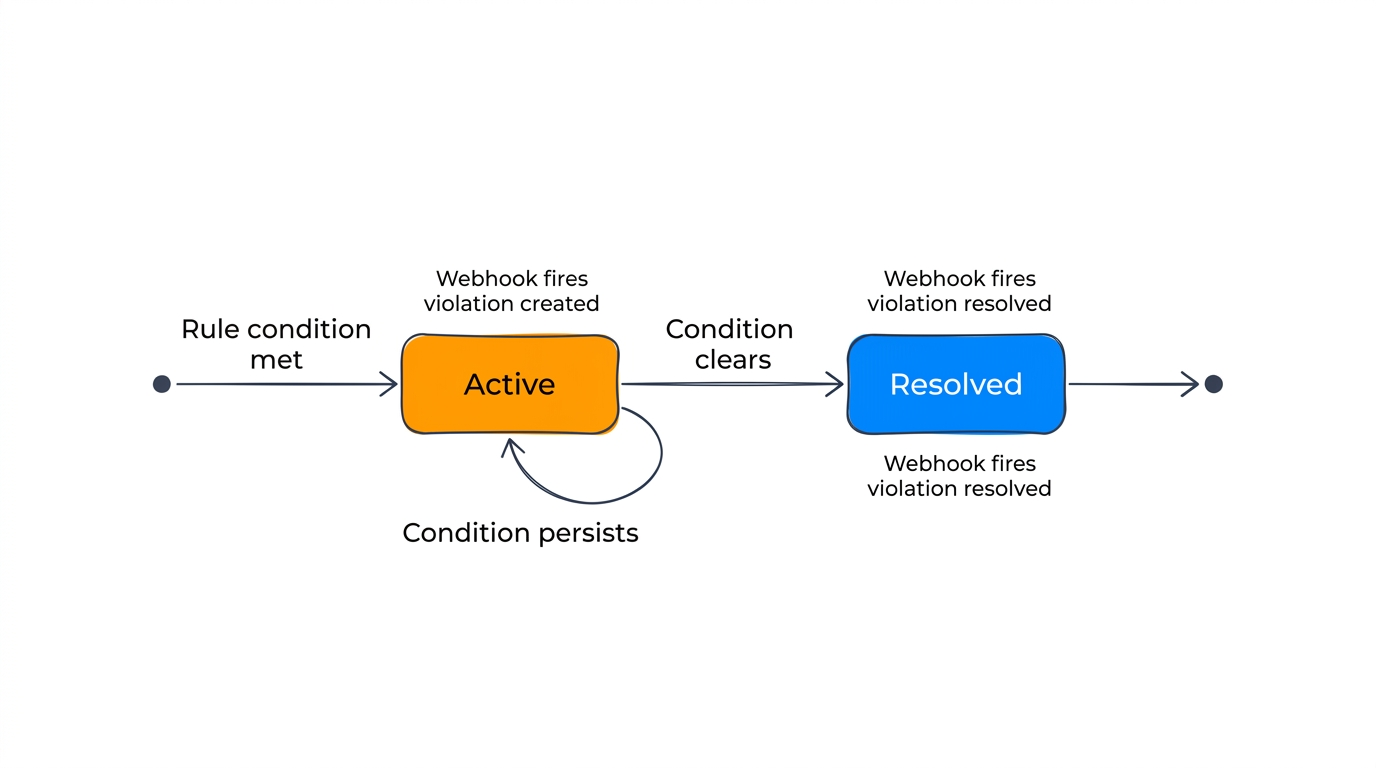
When an alert rule triggers, it creates an alert. Unlike one-time notifications, alerts persist until the underlying condition resolves. This gives you a live view of everything that's out of compliance across your workspace.
For example: - A geofence exit alert stays active until the device returns to the zone. - A dwell time alert stays active until the device leaves the location. - An inactivity alert stays active until the device reports a new position.
Alert lifecycle
Every alert follows a lifecycle:
active → acknowledged → resolved
- Active — The condition was detected. The alert appears on the Alerts page and needs attention.
- Acknowledged — An operator has seen the alert and optionally assigned it to someone. The underlying condition is still present, but the team knows about it.
- Resolved — The condition has cleared. Alerts can resolve automatically (the device returned to the zone, the dwell ended) or be resolved manually by an operator.
Acknowledging alerts
Click Ack on any active alert to mark it as acknowledged. This signals to your team that the issue is known and being handled. Acknowledged alerts stay visible on the Alerts page — they don't disappear until resolved.
Resolving alerts
Alerts resolve in two ways:
- Automatically — The system resolves the alert when the triggering condition clears (e.g., a device re-enters a geofence). Most alerts resolve this way.
- Manually — Click Resolve to close an alert that you've handled, even if the underlying condition hasn't changed. For example, you might manually resolve an inactivity alert after confirming the device is switched off for maintenance.
If a resolved alert's condition recurs, the system creates a fresh alert with no acknowledgement history — it's treated as a new incident.
The Alerts page
The Alerts page is your triage workspace. It shows individual alerts with:
- Severity — Visual indicator of the priority level.
- Asset — The affected device, linked to its history.
- Rule — Which rule triggered the alert, linked to the rule detail.
- Status — Active, acknowledged, or resolved.
- Duration — How long the alert has been open.
- Actions — Ack and Resolve buttons.
Use the filters to narrow by status, severity, or rule type. Click the stat cards at the top to quickly switch between active and acknowledged views.
Notifications
Alerts trigger notifications at three points:
- When an alert is created (notification type:
new) - When an alert is resolved automatically (notification type:
resolved) - When an operator acknowledges or resolves an alert manually (notification type:
status_changed)
Integrating with external systems
The alert lifecycle is fully accessible via the Tracker API, making it straightforward to integrate with dispatch systems, fleet management tools, or custom dashboards.
Example: driver routing integration
A common pattern is connecting alerts to a driver dispatch or task management system:
- Listen for new alerts via notifications. When a
return_to_baseorscheduled_returnalert fires, your system receives the device ID and rule details. - Acknowledge the alert via the API to signal that your routing system has picked it up, optionally assigning it to a driver or dispatcher:
PATCH /api/workspaces/{id}/violations/{violation_id}/acknowledge {"assignee": "driver-42"} - Add notes as the situation develops — for audit trails or handoff between shifts:
POST /api/workspaces/{id}/violations/{violation_id}/notes {"text": "Driver rerouted, ETA 15 min"} - Resolve manually if the external system handles the issue before the device triggers auto-resolution:
PATCH /api/workspaces/{id}/violations/{violation_id}/resolve
{"note": "Confirmed returned via dispatch system"}
The API also supports filtering alerts by assignee, status, severity, and rule_type — useful for building dashboards that show only the alerts assigned to a particular team or operator.
Key API endpoints
| Endpoint | Method | Description |
|---|---|---|
/violations |
GET | List alerts with filters (status, severity, rule_type, assignee) |
/violations/stats |
GET | Counts by status and severity |
/violations/{id}/acknowledge |
PATCH | Acknowledge an alert, optionally assign |
/violations/{id}/resolve |
PATCH | Manually resolve an alert |
/violations/{id}/notes |
POST | Add a timestamped note |
All endpoints are scoped to /api/workspaces/{workspace_id}/. See the interactive API reference for full request and response schemas.