Troubleshoot a device not appearing on the map
Work through these checks when a registered device isn't showing up on the Blecon Track live map.
Check 1: Is the Blecon Agent running?
The most common cause is the Blecon Agent not being active on your phone (or other hotspot device). Without a running Agent, there is no hotspot to detect your device.
- Open the Blecon Agent on your phone.
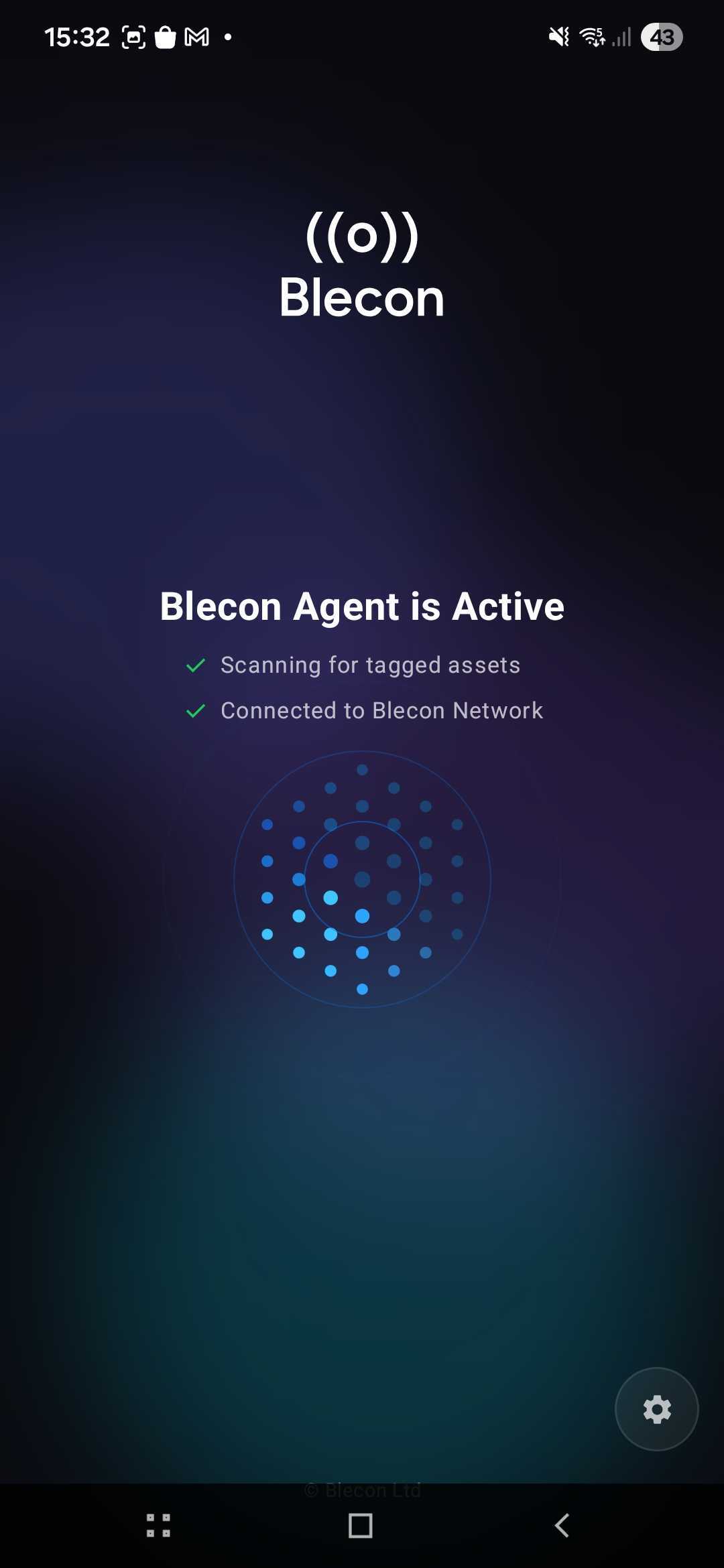
- The main screen shows the Agent's status. You need to see "Blecon Agent is Active" with green checkmarks for Scanning for tagged assets and Connected to Blecon Network.
- If the screen shows "Blecon Agent is Inactive", the Agent is not scanning. Check for warnings at the bottom of the screen — a common cause is battery saving mode limiting Bluetooth access.
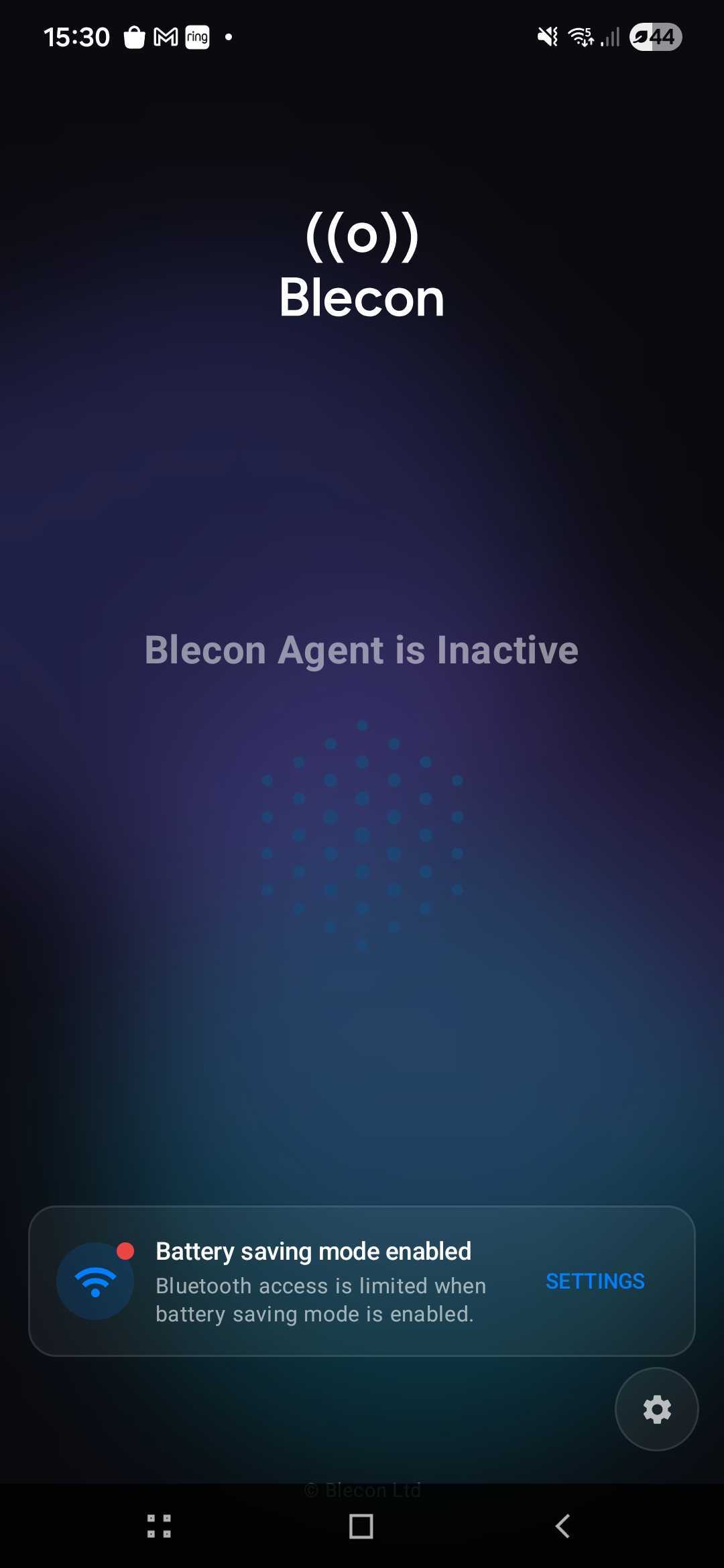
On Android: Battery optimisation and battery saving mode can prevent the Agent from scanning. Go to Settings > Apps > Blecon Agent > Battery and select Unrestricted. Also check that battery saving mode is turned off, as it limits Bluetooth access.
On iOS: Ensure Bluetooth and Location permissions are set to Always Allow for the Blecon Agent. Go to Settings > Blecon Agent and verify both permissions.
Check 2: Is the device registered?
A device must be registered to your network before its position appears on the map.
- Open Blecon Track and go to Assets.
- Search for the device ID. If it doesn't appear, the device hasn't been registered yet.
- Register it by clicking Scan Asset and following the prompts. See Register and scan devices for details.
Check 3: Is the device in range of a hotspot?
Bluetooth range is typically up to 30 metres indoors, but walls, metal shelving, and other obstacles reduce it.
- Bring the device within a few metres of your phone (or fixed hotspot).
- Wait 1–2 minutes for the next scan cycle.
- Check the live map again.
Check 4: Is the device activated?
Smart labels
Smart labels are activated by peeling off the backing. When you peel the backing, the gold contact pads on the battery must come away with it — this breaks the insulating layer and connects the battery. If the gold pads stay on the label instead of coming off with the backing, the label has not activated. Press the backing back on and peel again, making sure the gold pads separate cleanly with the backing.
Beacons
Battery-powered beacons are always broadcasting once activated. Check:
- The device has not run out of battery.
- If the device has a power switch or pull tab, it has been activated.
Check 5: Is GPS available for mobile hotspots?
If you're using a phone as a mobile hotspot, the Agent needs a GPS fix to report the device's position. Without GPS, the Agent detects the device but can't determine where it is.
- Move to an area with GPS signal (near a window or outdoors).
- Ensure Location Services are enabled on the phone.
- Wait for the Agent to acquire a GPS fix — this can take up to a minute in poor signal areas.
If you're indoors and relying solely on mobile hotspots, consider adding fixed hotspots with known positions for reliable indoor coverage.
Check 6: Wait for the position to calculate
After a hotspot first detects a device, it can take 1–3 minutes for the position to appear on the map. The positioning engine collects readings from nearby hotspots before calculating a position.
If the device still doesn't appear after 5 minutes, work through the checks above again.
Still not working?
If you've verified all the above and your device still isn't appearing, contact Blecon support with:
- The device ID.
- Your hotspot ID — open the Blecon Agent and tap the cog icon in the bottom-right corner to find it.
- Which hotspot type you're using (phone with Blecon Agent, or fixed hotspot).
- How long you've waited.